Choosing a Touch Screen Kiosk is not just a matter of comparing screen sizes or finishes. The right choice should fit the way customers move through your business, the tasks they need to complete, and the conditions on your floor. A kiosk beside a busy café counter faces different demands than one in a quiet clinic lobby. The difference shows up in small moments: glare across the screen, a payment step that feels unclear, or a stand that crowds a narrow walkway.
Usability expert Don Norman’s concise observation, “Attractive things work better,” is a helpful reminder to consider appearance and experience together. Still, a polished design cannot fix confusing menus. Start by defining the kiosk’s job, then assess screen size, mounting, accessibility, payment options, software compatibility, security, and ongoing support. Think about fingerprints, bright windows, wheelchair reach, and who will update the content. Small details count. And yes, a convincing product demo can make the real-world setup look easier than it is.
This guide explores how to compare Touch Screen Kiosk options against your business needs, budget, and operating environment. It also considers installation, maintenance, and the questions worth asking suppliers before you commit. A practical evaluation may take longer. That is usually better than discovering that a beautiful kiosk slows down the queue. Test the workflow with real users, if possible; their hesitation can reveal what a spec sheet misses.
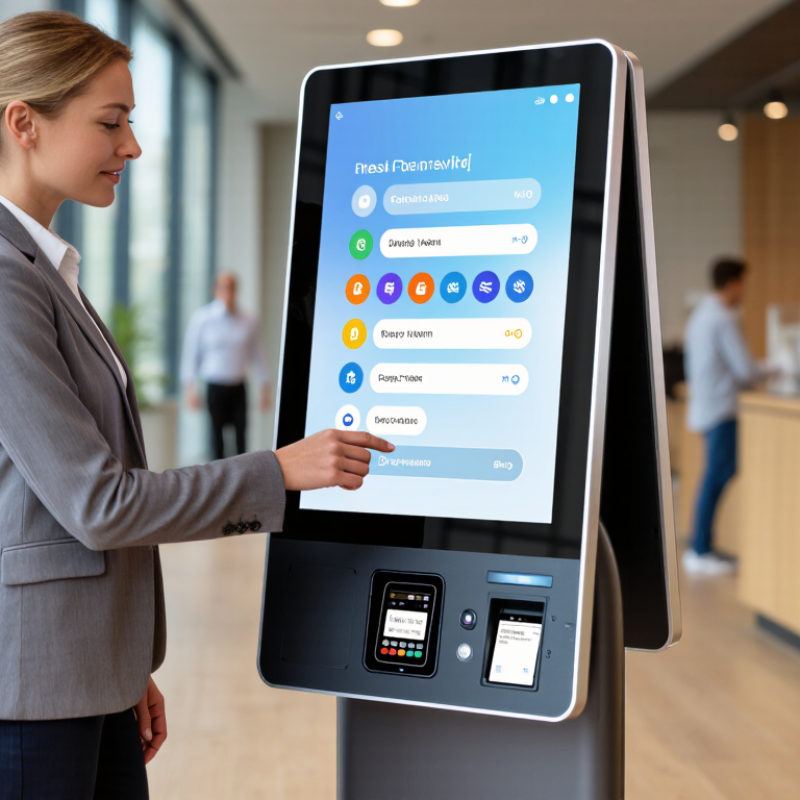
Before comparing screen sizes or payment options, define the task the kiosk must handle. Will visitors check in, browse a menu, find a room, or complete a purchase? Be specific. “Help customers” is too broad to guide hardware choices. Observe the actual workflow: note where people pause, what information they need, and whether they use one hand while carrying bags or drinks.
The location matters just as much. A kiosk near a sunny entrance may need a brighter display than one in a quiet lobby. A busy checkout area may require a sturdy stand and a screen that responds quickly during peak periods. Consider who will use it, too. Large touch targets and clear wording can help people of different ages and abilities. Decide whether the kiosk needs a receipt printer, scanner, or connection to existing business systems. Every added feature brings setup and maintenance needs.
Plan for problems, not only the ideal visit. What happens if the network drops or a visitor gets stuck? Staff should be able to explain the process and handle a simple fallback. Test a working mock-up with real users before committing. Their feedback may challenge your assumptions. That can be inconvenient, but it is better than discovering the screen sits at the wrong height after installation. A short trial will not reveal everything, either. Keep room in the budget for adjustments.
When identifying kiosk requirements and intended use, consider whether customers can comfortably reach the touchscreen from a seated or standing position.
The ranges shown are from the 2010 ADA Standards for Accessible Design: Sections 308.2.1, 308.2.2, and 308.3.1. The obstructed forward reach range shown assumes an obstruction depth of 20–25 inches. Confirm applicable codes and site conditions when planning installation.
Touch screen kiosks differ in placement, enclosure, and connected equipment. A freestanding model suits open lobbies where visitors need room to pause. Countertop units fit reception desks, but can crowd a small work surface. Wall-mounted screens save floor space; however, their fixed height may not suit every visitor. Outdoor models need brighter displays and sealed housings to handle glare, dust, and moisture.
Compare configurations by task, not appearance alone. A check-in kiosk may need a camera, document scanner, and receipt printer. A product directory may work well with a large screen and no extra hardware. Check screen angle, mounting height, cable access, and cleaning requirements before purchase. A stable network matters too, especially when the kiosk retrieves live information. There is no perfect setup; a tidy wall unit can still feel awkward to use.
Tips: Map the user’s steps, then test a sample setup in the actual location. Watch where people stand and reach. A short trial may reveal problems that a floor plan misses.
Choose a kiosk around the task it must complete: check-in, wayfinding, or product selection. A 22-inch display may suit a counter, while a floor-standing unit needs a stable base and a screen readable from several feet away. Check brightness under the actual lighting; reflections from a glass entrance can make an otherwise sharp screen difficult to use. Match processor, memory, and storage to the software, and confirm the enclosure supports ventilation and routine servicing. A fast demo is not proof of reliable performance over a full business day.
Accessibility affects a large share of customers. The U.S. Centers for Disease Control and Prevention reported that about 1 in 4 U.S. adults had a disability, based on 2018 data published in its 2019 MMWR report. Provide clear contrast, readable text, plain-language prompts, and controls usable from seated positions. WCAG 2.2 sets a 24-by-24 CSS-pixel minimum for many on-screen targets; larger buttons are often more practical on public kiosks. Include alternatives to audio-only instructions, and test the interface with people who use assistive technology.
Tips: Try the kiosk in its intended location. Check glare, reach, screen response, and cable access. Small details matter. A quick test can still miss real-world needs.
A touch screen kiosk is only as dependable as its software. Check how often it receives security updates, whether staff can use separate permission levels, and how quickly a lost device can be locked remotely. Ask for a clear update schedule, audit logs, and a way to test changes before they reach live kiosks. The 2024 Data Breach Investigations Report found that 68% of breaches involved a non-malicious human element. That matters. A rushed staff member should not need administrator access just to restart a frozen screen.
Security also depends on what the kiosk connects to. The 2024 Cost of a Data Breach Report reported an average global breach cost of $4.88 million. Treat that figure as a warning, not a forecast for every business. Check whether the kiosk can exchange only necessary data with payment, inventory, or appointment systems, and confirm how failed connections are handled. Test a real scenario: unplug the network cable during a transaction, then see whether the screen protects customer information and recovers cleanly. No checklist catches every awkward edge case. Integration demos can look smooth while hiding brittle dependencies, so involve the staff who will troubleshoot the device on a busy day.
| Assessment Area | What to Evaluate | Questions or Evidence to Request | Suggested Acceptance Criteria | Why It Matters |
|---|---|---|---|---|
| Software fit | Supported kiosk workflows, content management, user interface configuration, and administrative controls. | Can staff update content and settings without rebuilding the application? Are different locations or user roles supported? | Demonstrate the intended customer journey and routine content changes using a representative configuration. | A close fit reduces workarounds and ongoing administration. |
| Device management | Remote monitoring, configuration, software deployment, restart controls, and device status reporting. | Can authorized staff identify offline devices and apply updates remotely? Which actions require on-site access? | Verify that a test device can be monitored and managed remotely, with permissions limited to appropriate staff. | Centralized management can reduce site visits and shorten troubleshooting time. |
| Security controls | Access control, authentication, encryption, secure configuration, audit logging, and vulnerability handling. | Ask about role-based access, multifactor authentication for administrators, encryption in transit and at rest, security updates, and incident response procedures. | Review written security documentation and confirm controls against your organization’s policies and data-risk requirements. | Kiosks may expose business systems or handle personal and payment-related information. |
| Public-use protection | Restricted operating-system access, session reset, browser controls, removable-media restrictions, and physical access protections. | Can users leave the intended application? Does the kiosk clear session data after each transaction or period of inactivity? | Test exit paths, idle-session behavior, reboot recovery, and access to system settings before deployment. | Reducing access to the underlying device helps protect both the kiosk and customer data. |
| Privacy and data handling | Data collected, purpose, retention, deletion, access, and any third-party processing. | Which information is stored on the kiosk, sent to connected services, or retained after a session? Can collection be minimized? | Document data flows and retention settings; collect only information needed for the stated business purpose. | Clear data handling supports privacy obligations and limits unnecessary exposure. |
| Business-system integration | Compatibility with relevant point-of-sale, booking, inventory, customer-service, identity, or payment systems. | Are documented APIs, supported connectors, or file-based exchanges available? Who maintains each integration? | Complete an end-to-end test in a non-production environment using representative data and error cases. | Reliable integration avoids duplicate entry and helps keep operational records consistent. |
| Network and offline behavior | Network requirements, connectivity options, behavior during outages, and synchronization after reconnection. | What functions remain available offline? How are queued transactions handled, and how are conflicts or failed syncs reported? | Simulate a network interruption and verify expected user messaging, data handling, and recovery behavior. | Understanding outage behavior helps prevent lost work and confusing customer experiences. |
| Payment handling | Payment-terminal compatibility, transaction flow, receipts, refunds, and division of security responsibilities. | Does the proposed payment setup use supported hardware and services? Which party is responsible for each part of the payment environment? | Confirm the complete payment configuration with the relevant payment service provider and assess applicable PCI DSS requirements. | Payment requirements depend on the specific environment and should be validated before launch. |
| Accessibility and usability | Touch-target size, text readability, contrast, reach range, keyboard or assistive options, and clear error recovery. | Can users complete key tasks with different abilities and in the expected lighting and noise conditions? Has accessibility been tested against relevant standards? | Test representative tasks with users; review applicable local accessibility rules and relevant guidance such as WCAG for digital content. | Accessible, clear interfaces can make self-service usable by more customers. |
| Updates and support | Support hours, escalation process, update frequency, maintenance windows, and software lifecycle. | How are urgent security fixes delivered? What service levels, support channels, and end-of-support notices are provided? | Obtain documented support terms, update responsibilities, and a process for reporting and tracking issues. | Clear support and update arrangements help maintain security and service continuity. |
| Total cost and scalability | Licensing, integration, installation, connectivity, support, replacement parts, and cost as locations or devices increase. | Which charges recur? Are costs based on devices, locations, users, transactions, or features? What changes when the deployment expands? | Compare a multi-year estimate that includes setup, operations, support, and planned growth. | A full-cost view makes alternatives easier to compare and budget. |
A touch screen kiosk’s price tag is only the starting point. Compare the display, computer, payment hardware, software, mounting, and warranty as one package. Grand View Research valued the global interactive kiosk market at $31.27 billion in 2023, reflecting broad adoption, not a guarantee of savings for any single site. Ask vendors to itemize costs and state what is excluded, such as cabling, network changes, or after-hours installation.
Installation can involve more than placing a stand beside a counter. Check doorway widths, floor strength, power outlets, glare, and Wi-Fi coverage before ordering. Request a site survey and a written installation schedule. Then price staff training and any required updates. Small details matter. A cable routed across a busy walkway may create daily frustration and require rework.
Ongoing support deserves equal weight. Ask about response hours, replacement-part availability, software updates, and the process for a screen that freezes during a rush. The U.S. Bureau of Labor Statistics reported a $60,340 median annual wage for computer user support specialists in May 2024; this is a useful labor-cost reference, not a kiosk-specific service quote. Estimate downtime and staff time using your own operating hours. One uncomfortable question remains: who handles the problem when the installer’s contract ends? Check the answer in writing.
„Thanks to the LUVIR technology, the solder resist process could be switched directly from the previously used mask exposure to direct exposure. As an outstanding digital solution on the market, this technology has been able to demonstrate fast process times and superior quality on our certified conventional ink in production. This allowed us to fully digitize the solder mask process at low cost – without process or ink adjustments. An excellent benefit to our production in Rot am See.“
Ralf Göhringer (Head of Production WE Rot am See)
I would definitely recommend the Limata machine and team for a future company purchase
Michael Greenaway
Compunetics Inc.
“The Limata ldi has been amazing!! Best thing we did was buy this machine”
Richard Brady
GM
Circuitlabs
“Since 2019, we have been running the Limata X1000 LDI system (including LUVIR for solder mask imaging) in daily production as an addition to our current process with film. The machine was capable of properly exposing Taiyo PSR-4000 BN (DI) solder mask types on normal to high-copper boards using a new and unique direct imaging process. The machine operating interface is very user friendly which allowed for a quick technical training curve. The pre-registration processing reduced several seconds of production time at every print. Limata support and service staff is incomparable. They supported our team every step of the way at basically any time of the day or night, with literally, an immediate response time, customizing the software interface to best fit our Operations and needs.
We have exposed more than 8,000 prints since end of October, on various solder mask colors and some resist film panels. Limata, has proven to be very capable and innovative. They are a strong contender in the industry.
We have very much enjoyed this project, and working with the team!
Thank you Limata for the continued support and being a part of our growth.”
Bill Sezate
Vice President, GM
Summit Interconnect
As a replacement to our current contact exposure process with film, the LIMATA X2000 system including LUVIR-Technology was capable of properly exposing non-LDI solder mask types using a direct imaging process. The machine offers cutting edge software with a very intuitive operating interface which allowed for quick technician training curve. The dual drawer system combined with pre-registration processing reduced several seconds of production time at every machine cycle. Limata support and service staff is world class. They added software patches to keep production running at shortest possible response times, customized the software interface to best fit our in-house Operations system, and even wrote a step-by-step machine processing manual. As a result of the project, we have exposed more than 16,000 times on various product types and solder mask brands/colors. Limata, in a very short timeframe as a company, has definitely shown they are truly innovative and will be challenging the industry of direct imaging for the top spot.
Kevin Beattie
Process Engineer
TTM Technologies
Forest Grove Division